Help topics
IDEF0 blocks
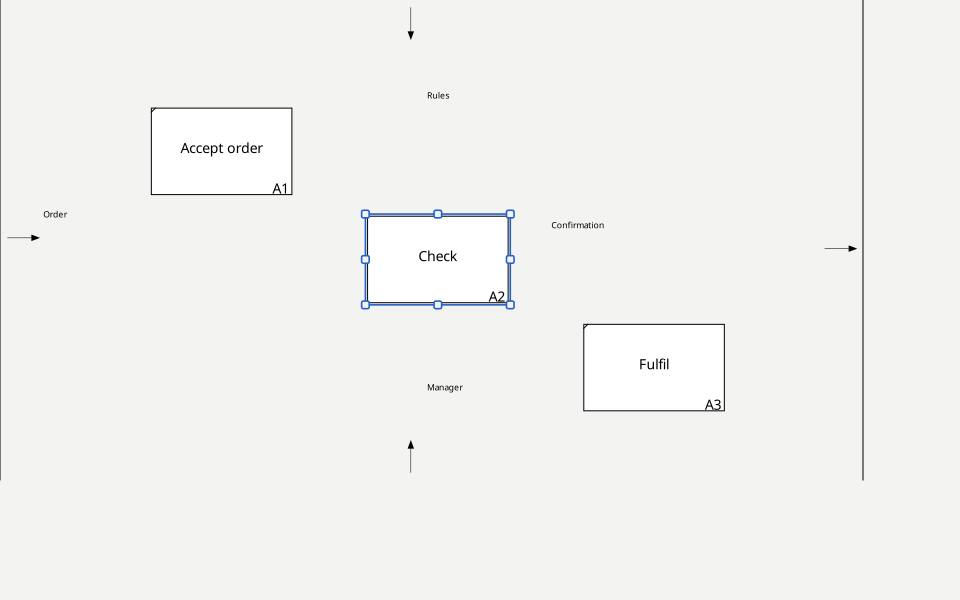
Open an IDEF0 diagram. A block represents an activity; name it with an action, such as “Accept order”.
Add and position a block
- Select the block tool and click an empty position on the canvas.
- Return to the selection tool. Select and drag the block; use its edge handles to resize it.
Name and properties
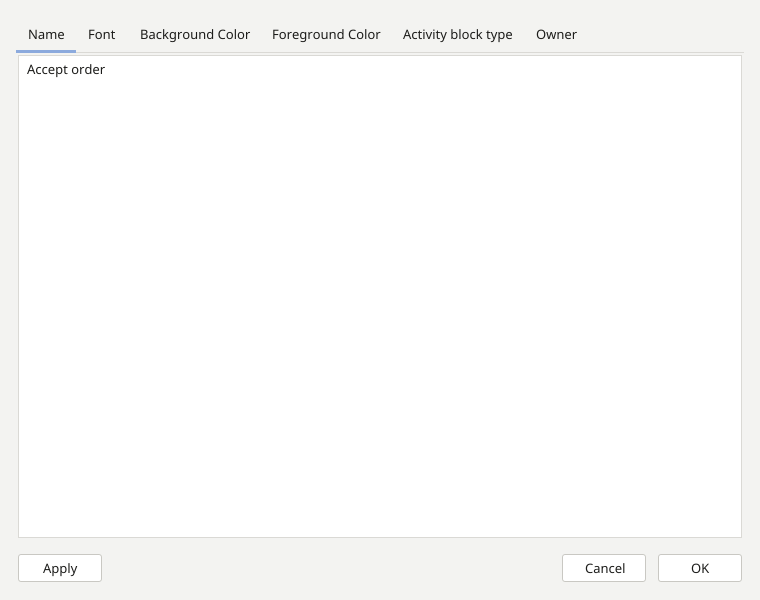
- Open the block properties from its context menu. Enter a name, description and a responsible person from the catalog if one is configured in the project.
- Confirm the changes. The name appears in the block; its description and responsible person remain available in properties.
Copy and delete
Select a block before copying or deleting it. After copying, paste it into the intended diagram and check its name and connections. Undo an accidental edit using the undo command in the edit menu, then save the correct result.
The active diagram now contains named blocks. Next, connect them with arrows.