Help topics
Project and data model
A Ramus project is shared data saved in an .rsf file. It can contain several models, classifiers, relations and reports.
Objects in a project
| Object | Purpose |
|---|---|
| Model | A hierarchy of processes with diagrams and shared properties. |
| Function block | An activity or process, with an optional child diagram, attributes and owner. |
| Diagram | Blocks and connections at one level of detail. |
| Classifier | A list of documents, positions, equipment or other objects. |
| Classifier element | One named object with attribute values. |
| Flow | Arrow content: its name and attached objects. |
| Arrow segment | Part between blocks, diagram borders or branch nodes, with an optional local label. |
A model's properties define the attributes available to its function blocks. Use them to record purpose, outcome or other process information.
Shared objects
Create Order once in Documents and attach that element to each flow that uses it. The name and properties then have one source. Typing Order as an arrow name alone does not link the arrow to that classifier element. Attach the element explicitly.
Working order
- Define the process boundary and create a model.
- Prepare classifiers of documents, resources and positions.
- Add attributes needed to describe them.
- Draw blocks and arrows and attach objects to flows.
- Decompose processes and select owners.
- Check connections and save.
You can develop data and diagrams gradually. Model properties include project name, author, Used At, definition, readers and review dates. Each model has its own values. A reader entry with a date records a review; opening a model alone does not certify review.
Model settings also select the model letter, default page size and term attribute. A block's term is the value of that attribute; selecting the attribute does not fill values or rename blocks. See owner classifiers and diagram properties for more detail.
Create and save
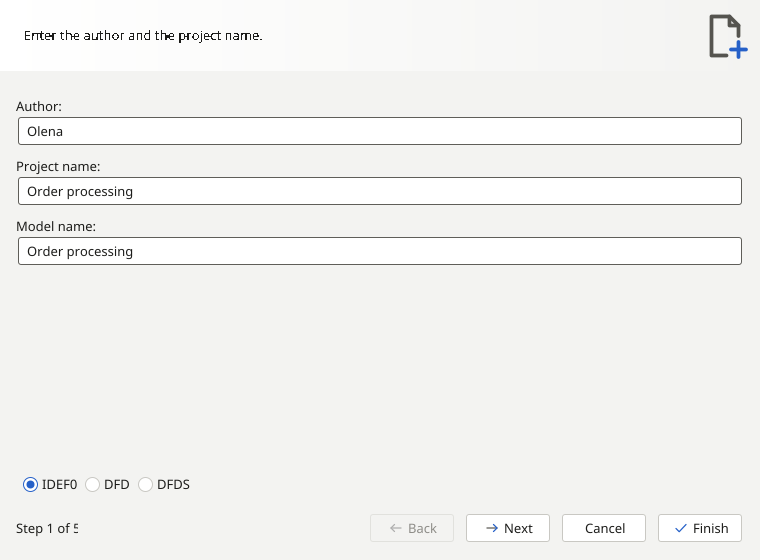
Choose New project or Open on the start screen. The new project wizard asks for notation; use IDEF0 for this manual's example. Save writes the current file; Save As selects a file name. The project format is .rsf. Saving status appears at the bottom of the window. Undo and Redo are in Edit.
Check the recorded state
- Save after editing and wait for writing to finish.
- Close the project, open that exact
.rsfand visit the relevant levels. - Check activities, arrows, tunnels, labels and attachment states.
Canceling the Save As file selection does not record changes. An existing older file does not prove the latest edit was written. Use a new name for a separate variant and check that file. Reopening restores the saved description, not execution of its process.