Help topics
Diagrams and decomposition
In the Diagrams workspace the Models tree shows models and detail levels. Open a node to display its diagram. Several diagrams can remain open in tabs.
IDEF0 blocks and arrows
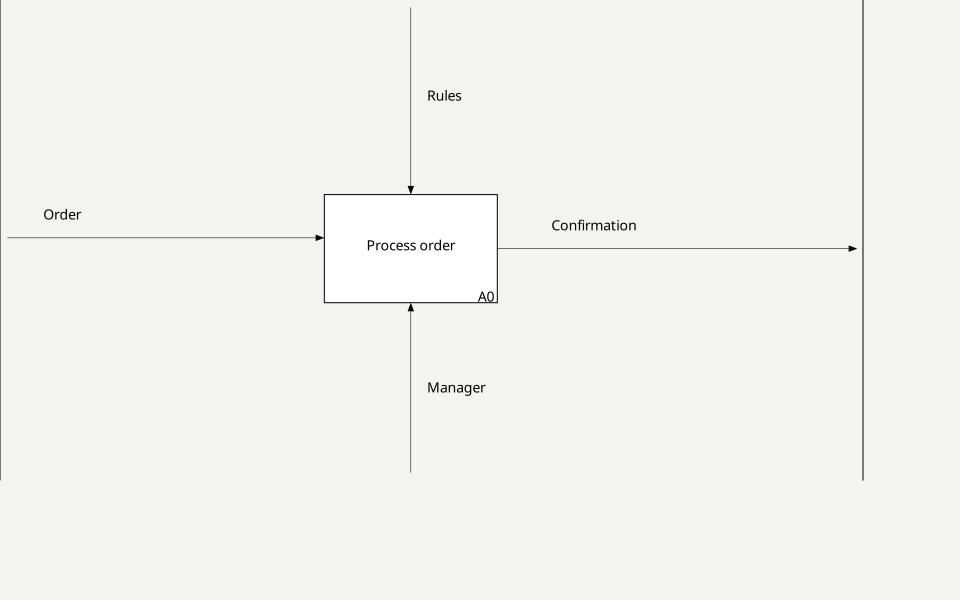
Use the block tool and click an empty area to add a block. Name it through editing or double click. The Arrow tool connects two points: click the start, then the end. Highlighting shows a valid block side or diagram border. Clicking an existing arrow allows branching or merging.
| Block side | ICOM meaning |
|---|---|
| Left | Input: what the activity transforms. |
| Top | Control: a rule or condition. |
| Right | Output: the activity's result. |
| Bottom | Mechanism: a performer or resource. |
The Cursor tool selects and moves objects and changes block sizes and arrow segments. Clicking near a connected endpoint starts reconnection; click its new destination. Escape cancels an unfinished reconnection. Right click in an empty area returns to selection.
Detail a process
Select a block and go to its child diagram. If none exists, the wizard offers a block count and template. Confirm to create children; Cancel leaves them uncreated. An existing child diagram opens immediately without the wizard. Connect the inherited border stubs' free internal ends to the appropriate child activities. Go to parent diagram returns one level up.
IDEF0 notation expects one function on the context diagram and three to six on a child diagram. The editor allows other counts, including ten, and technical decomposition can start with two. Being able to create and save a diagram does not mean it satisfies the count rule. Name activities with verbs, such as Check order and Ship order. Their parent Process order should summarize them. Group related work meaningfully when a level becomes crowded; preserve work and connections and reconcile all external ICOM with child diagrams. Do not invent work just to meet a count. Spelling checks do not assess grouping meaning.
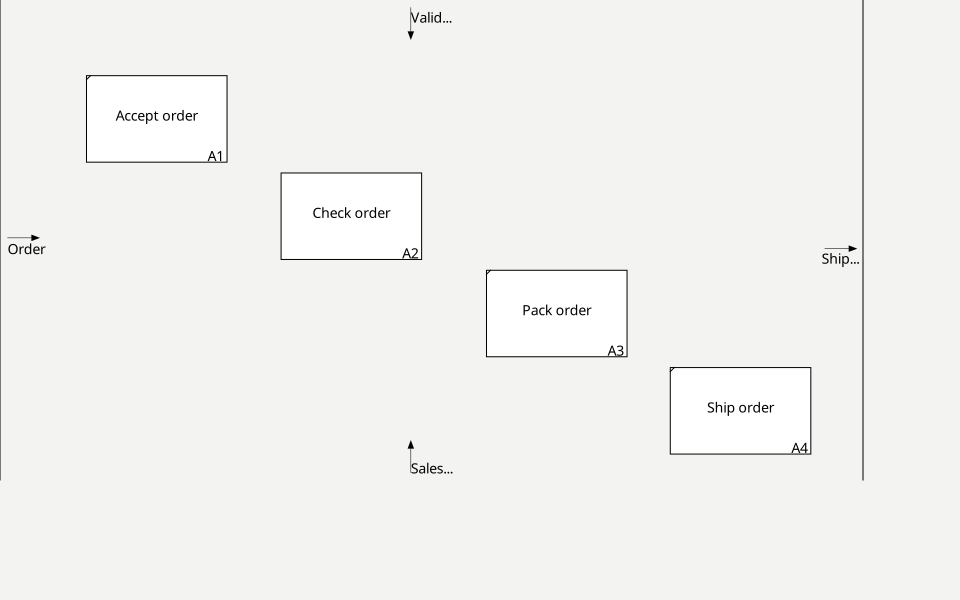
Activity numbers and order
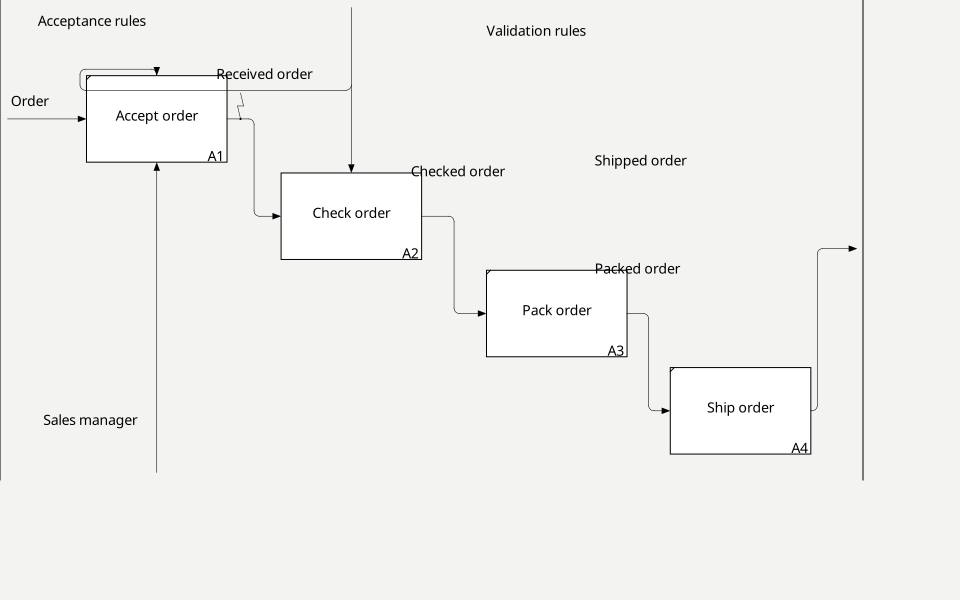
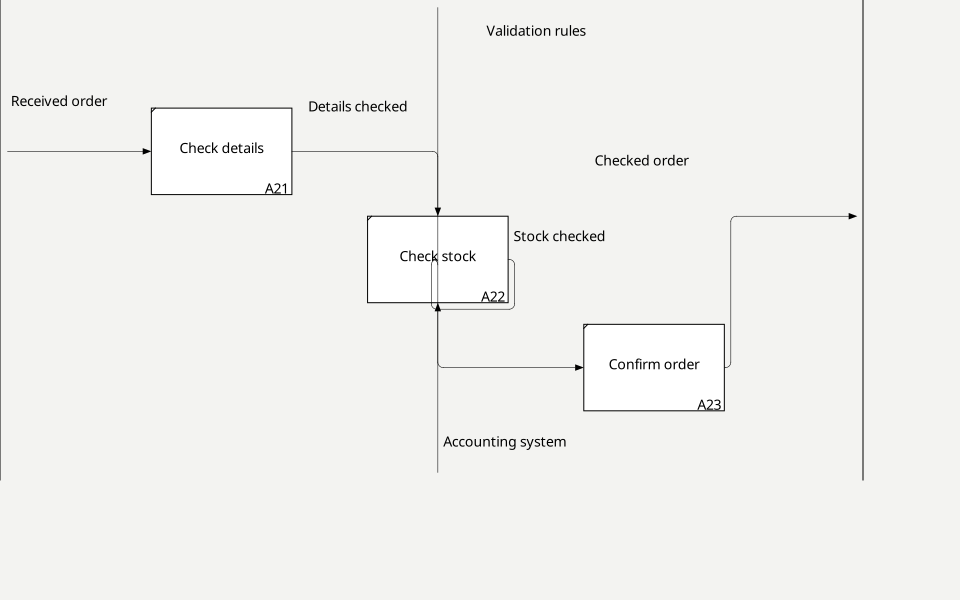
A-0 is the context diagram; A0 is its single activity and the number of that activity's child diagram. A0 contains A1–A4; A2 contains A21–A23. The model letter controls the prefix. Numbers describe hierarchy positions, not permanent identity.
Move a block past another: order is left to right, then top to bottom for equal horizontal positions. Numbers change while activities remain the same. Undo restores the order. Arrow properties show endpoint ICOM roles and activity codes; do not expect printed I1/C1/O1/M1 labels at every border.
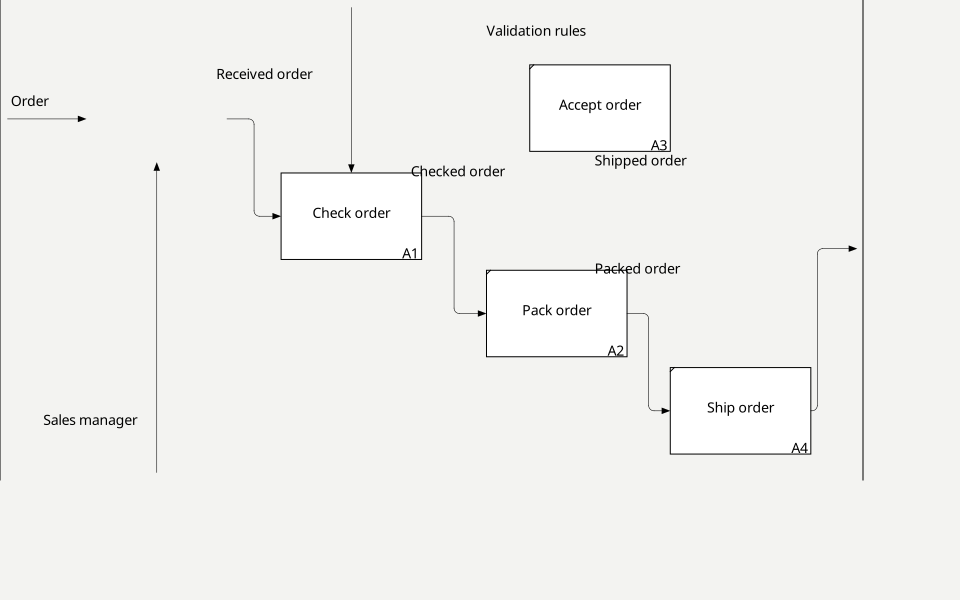
Branches and merges
For a branch, start the Arrow tool in the middle of a line and finish at a valid side of another block. For a merge, start at a block or border and finish on an existing line. A node connects segments; a flow describes content. Matching text alone does not create a node or shared flow.
The example branches control to A1/A2 and merges two check results before A23. After editing check attachment propagation, including adjacent levels.
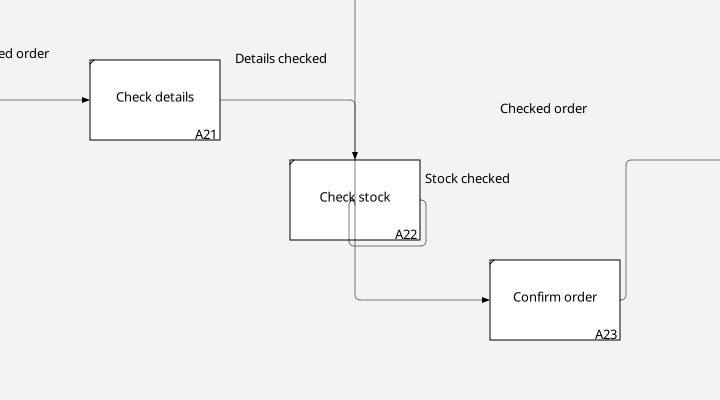
Labels and tilde leaders
Enable text display in the arrow editor. A segment's alternative text takes priority, followed by the explicit flow name, otherwise attached element names and states. An ordinary connected group of one flow on one diagram has at most one label. Visible alternative text gives its segment a separate label group without renaming the flow. Alternative text with display disabled is not drawn.
Drag the label into an empty area. Enable a tilde leader and select its point along the relevant polyline. The leader connects a displaced label to that line; it creates no flow, tunnel or branch node. For a missing label check text visibility, alternative text and the neighboring segment in its group.
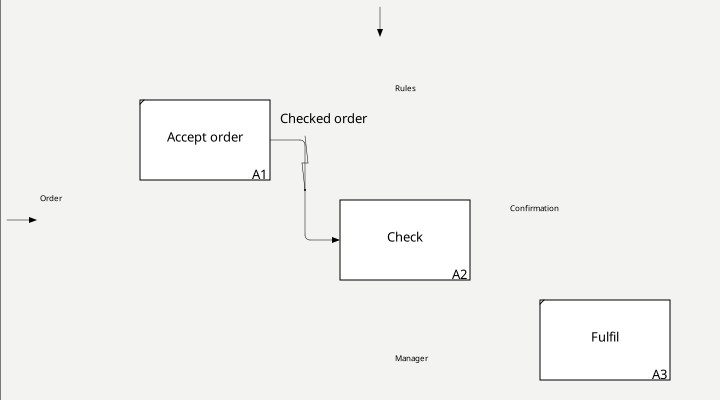
Move, copy and delete
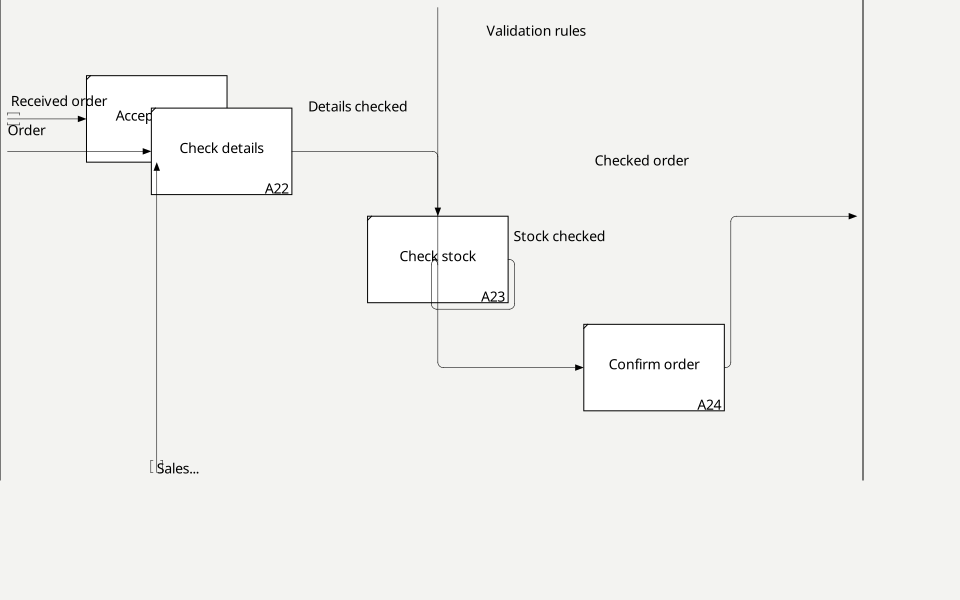
Move a block or its edge with Cursor; connected routes adjust. Copy and Paste create a new block in a target diagram of compatible notation. Check the copy's number and connections. An IDEF0 block cannot be pasted into DFD/DFDS by bypassing the notation check.
Cut and Paste delete the original and insert a copy; they do not guarantee preservation of identity or all external connections. Confirmed deletion of a decomposed block also removes descendants and connected arrows. After deleting a child continuation check the tunnel at the parent endpoint.
Undo and redo
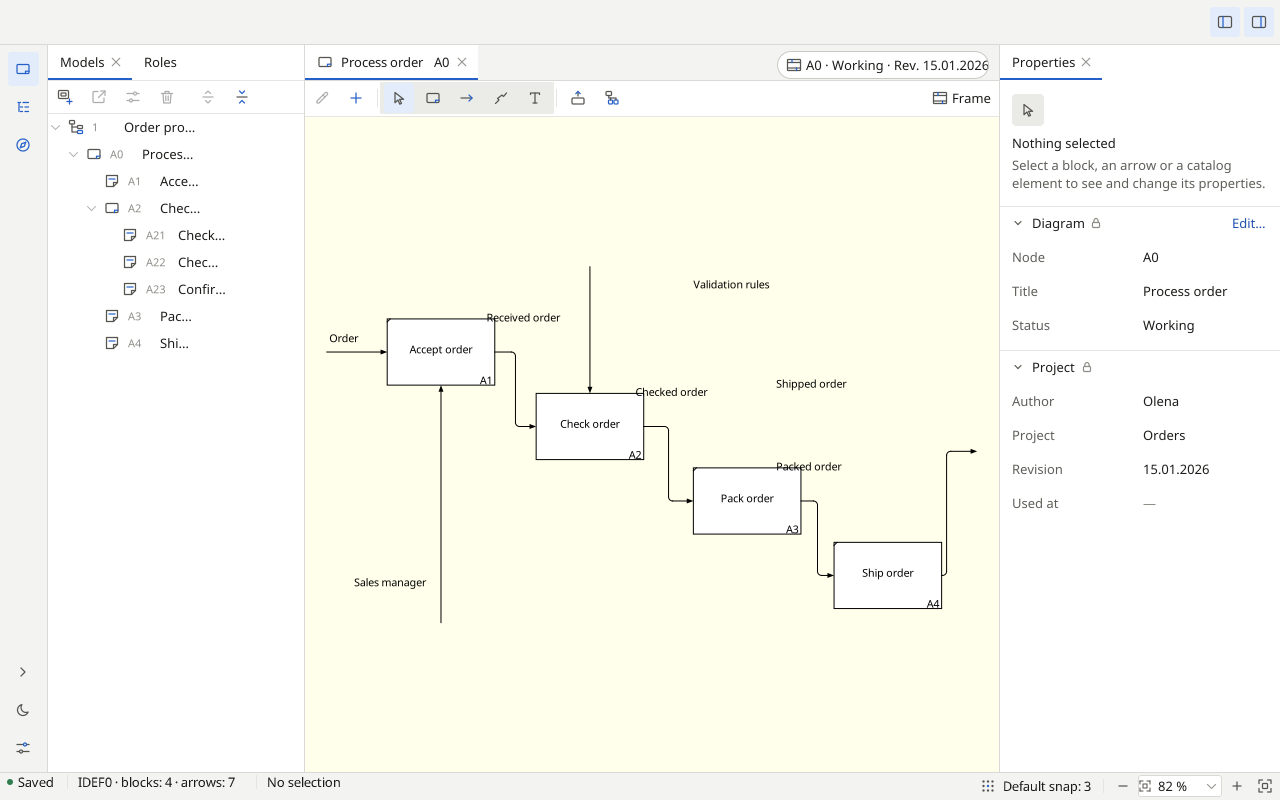
Use Edit to undo or redo an action. After deleting A2, undo, redo and undo once more; inspect A0 and restored A2, including its activities and arrows. Navigation to an existing diagram is not itself a model edit. A new edit after undo replaces the previous redo branch.
Tunnels
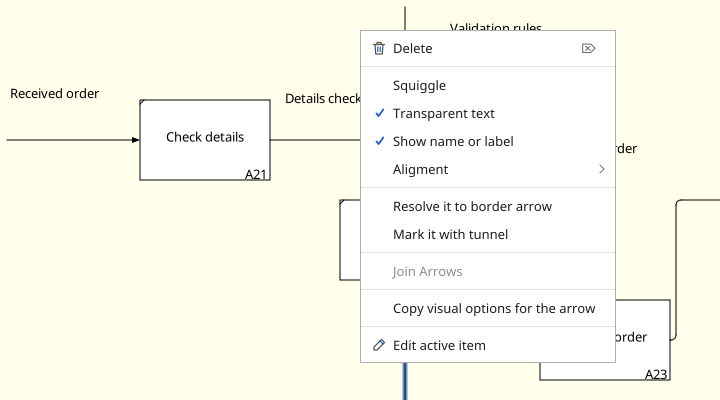
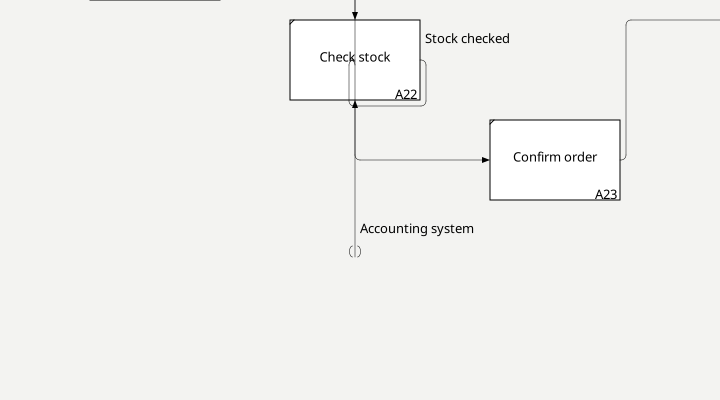
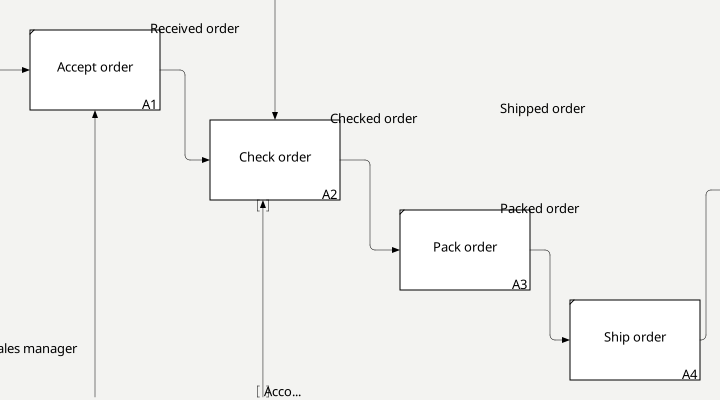
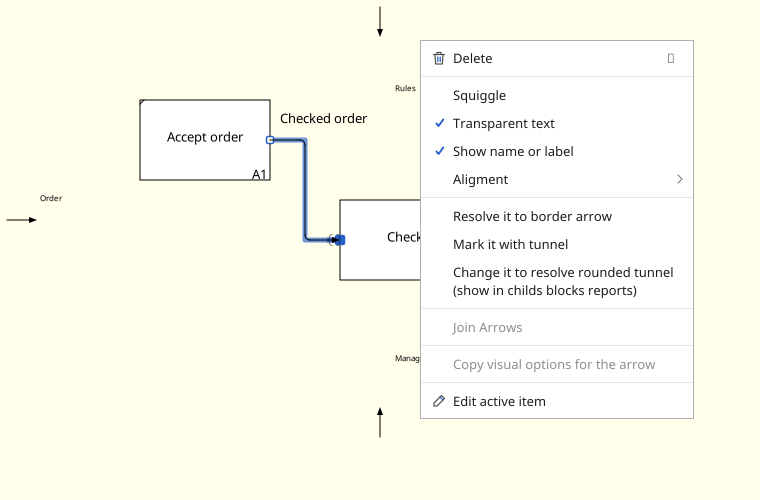
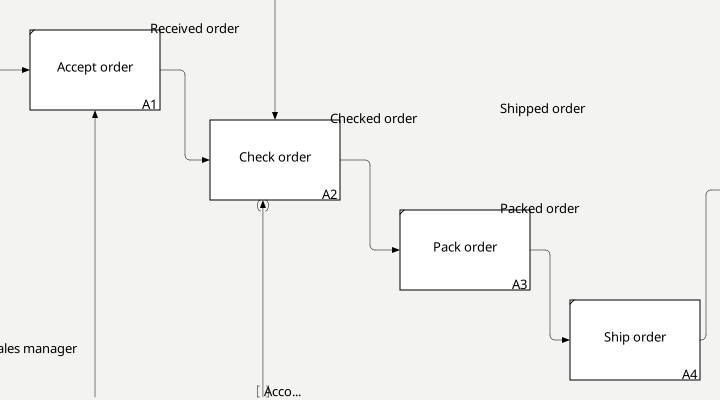
Read a tunnel separately at the start and end of an arrow. Select the required endpoint and open Tunnel. A square marker indicates a local end without an ordinary adjacent-level continuation. A free internal end of an inherited stub is different: it already has a parent counterpart.
A child border offers square and simple rounded options and creation of a border continuation. Confirming the continuation creates its parent counterpart and removes the tunnel from the connected child end. Return up and complete the new free end according to the model's meaning.
After removing a child continuation, the endpoint at its decomposed parent block offers square, ordinary rounded and simple rounded options. For an input, control or mechanism the ordinary rounded option can include the relation in reports for child activities without drawing arrows there. Simple rounded does not request that propagation. Both look rounded: distinguish them by the actual menu selection, not the bracket alone.
Changing tunnel shape alone does not create a cross-level continuation. Check both diagrams and reports after choosing. Follow the local mechanism exercise.
Properties and readability
Model properties define common data and block attributes. Diagram properties define the current diagram's author, dates, page and editorial status, separately from flow attachment states.
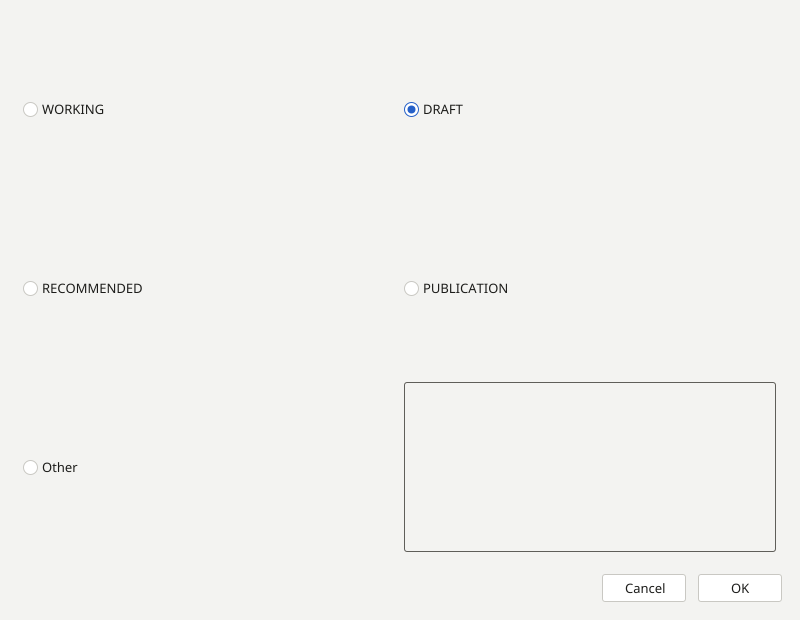
An author without a local value comes from the parent, then the model. An explicitly empty author differs from an absent value. Page size defaults to the model. Status is local and not inherited: Working, Draft, Recommended, Publication, or Other with custom text such as Under review. The IDEF0 frame has only four standard status rows; it does not display a fifth custom status row. Choose Other to edit custom text, confirm and reopen to verify it. Cancel does not apply trial edits. This is preparation metadata, not execution or approval.
Creation date without a local value comes from the parent, then model. Revision date prefers a manually set local date, then an available system revision date (including a parent's), then the parent's revision and model change date. Clearing a manual date can reveal the system date again. Missing dates stay empty; viewing is not a revision or approval. Labels can be moved; centering attached arrows arranges endpoints on block sides. Zoom and fit help inspect the whole diagram.
DFD and DFD with roles
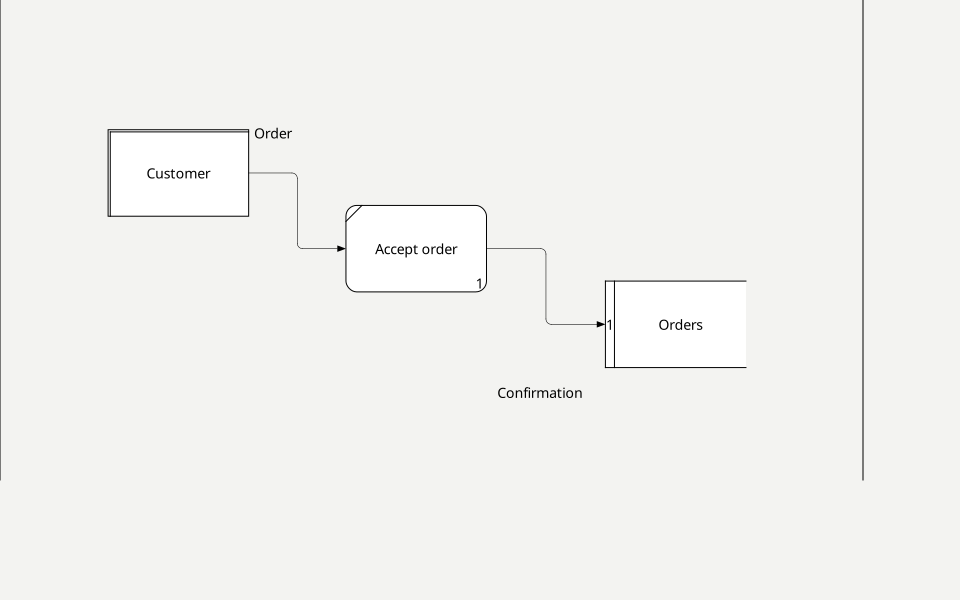
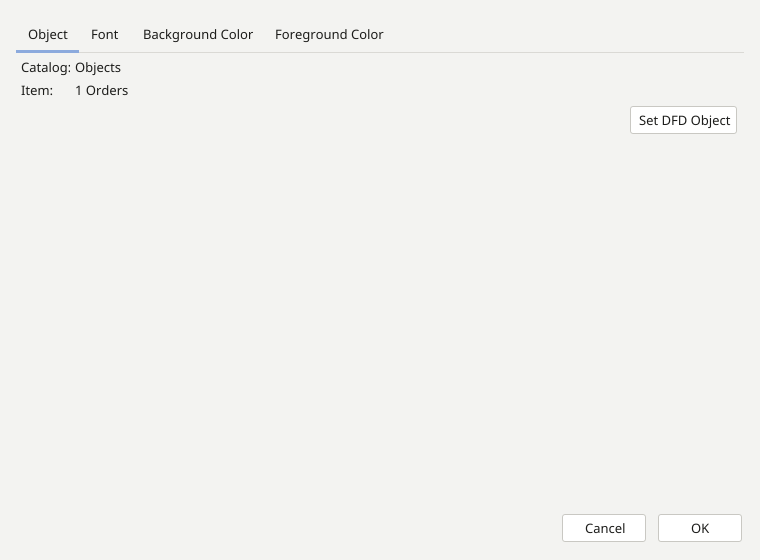
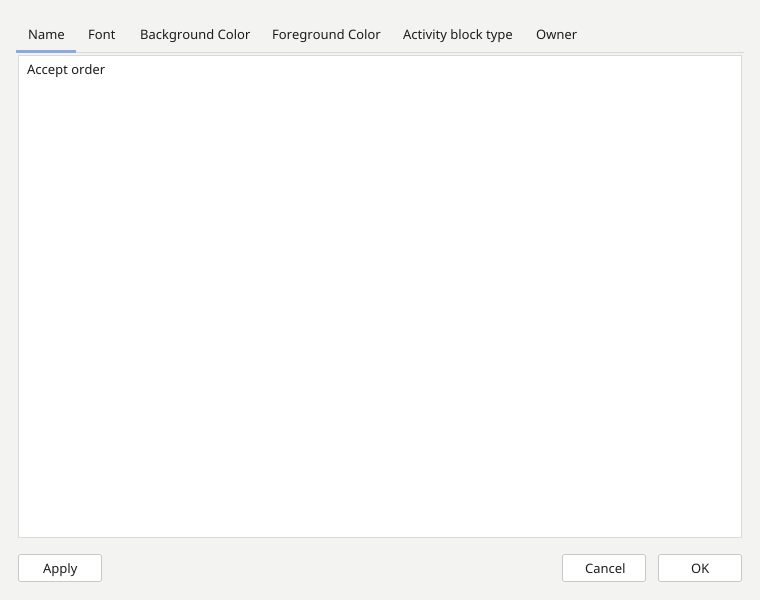
DFD contains processes, external references and data stores. DFDS adds roles. IDEF0 block counts and ICOM sides are not universal rules for these notations. The DFD example connects Customer → Accept order → Orders, with the store linked to a classifier element. These are separate models, not an automatic conversion of IDEF0.
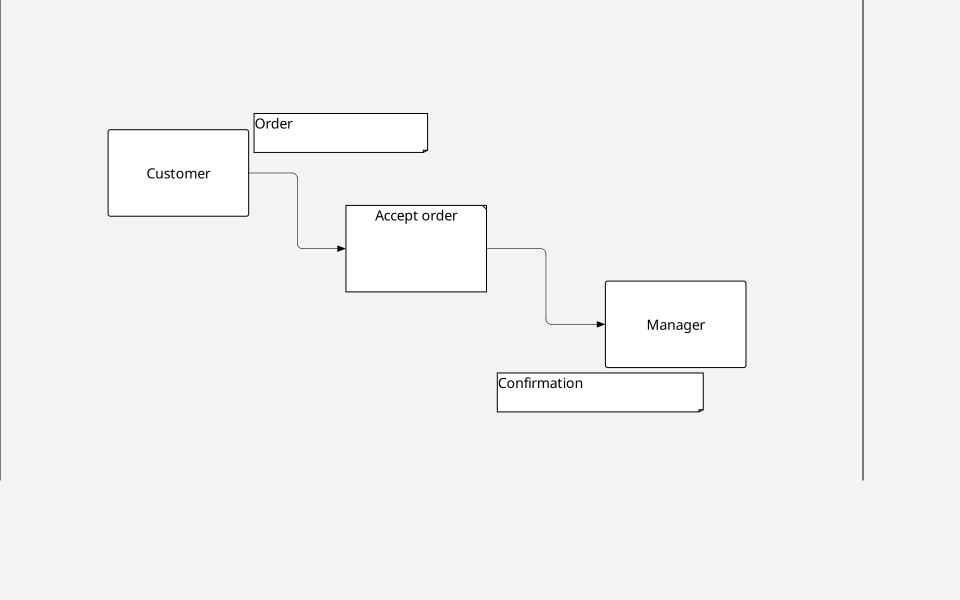
A role inside Check order belongs to that process and can refer to a flow with Sales manager attached. Process, role, flow and position are separate objects. Role containment differs from a process owner. Moving a role inside a process changes its membership and affected arrow endpoints; changing its flow affects dependent flows and owner resolution.
A referenced name differs from a role's own label. Renaming the referenced object changes the shared flow name; a nonempty local role label takes display priority without renaming the flow. DFDS can keep short and long names, separated by the first line break when there is no reference. Name templates use the role and term when specified; entering a label alone creates neither relation.