Help topics
Import, export and printing
Open a model and save your changes. An .rsf file contains the project, while diagram export and printing create representations of it.
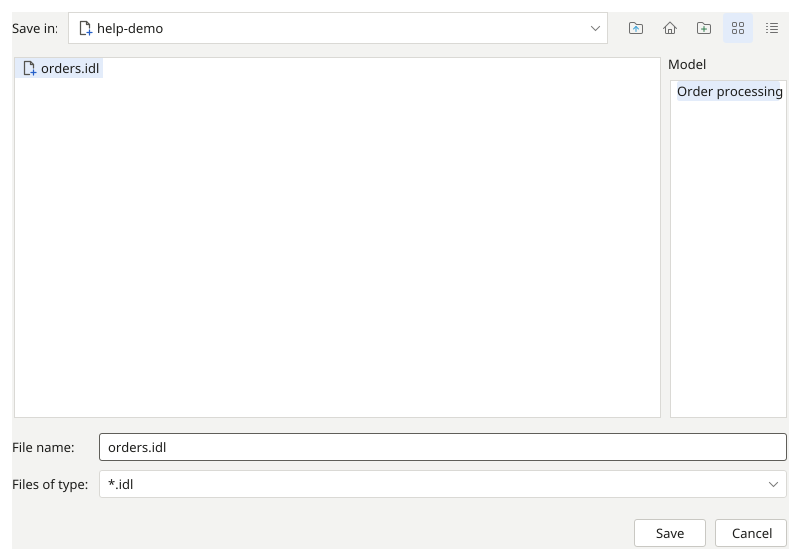
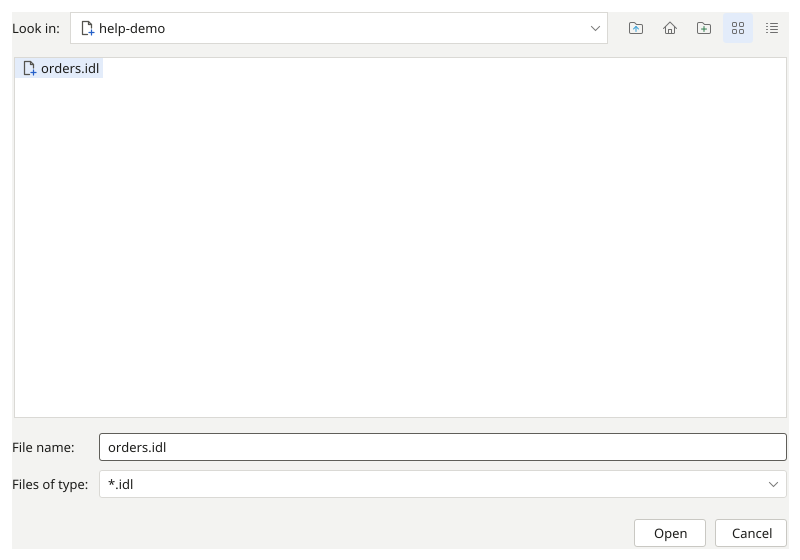
Exchange using IDL
- To transfer diagrams, choose “Export to IDL” in the diagram menu, select a destination file and confirm the export.
- To receive data, choose “Import from IDL”, select an IDL file and confirm. Check the resulting diagrams and save the project as .rsf.
Excel tables
Excel commands are available when the corresponding plugin is installed. They work with table data; use .rsf to transfer an entire project.
- Open the required catalog table. Choose “Export to Excel”, select a file and confirm.
- To load a table, choose “Import from Excel”, select the file and map the data to attributes. Check names and values in the table after import.
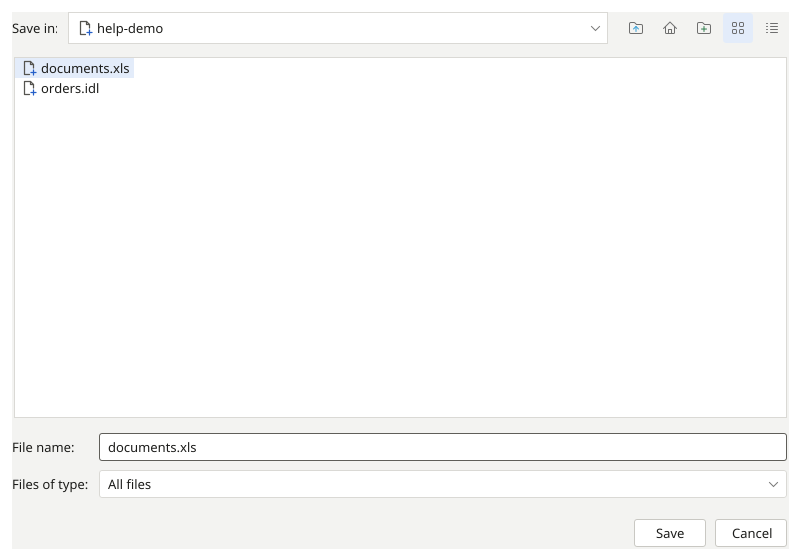
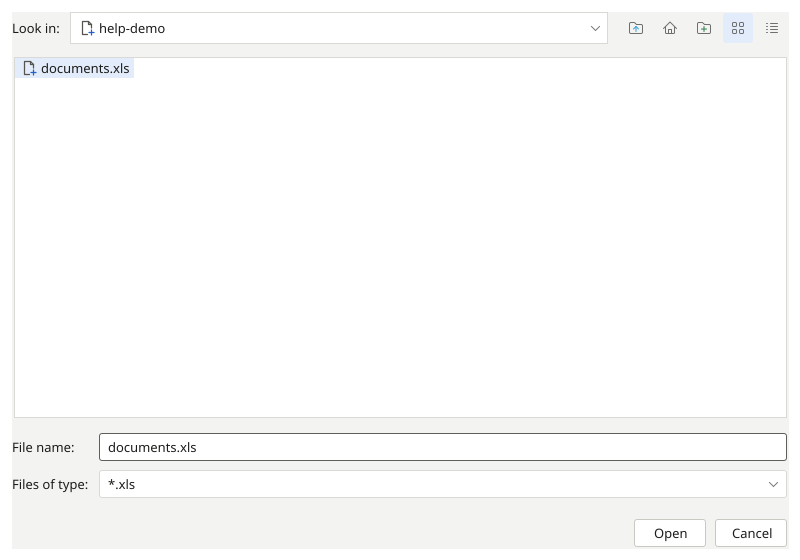
Diagram images
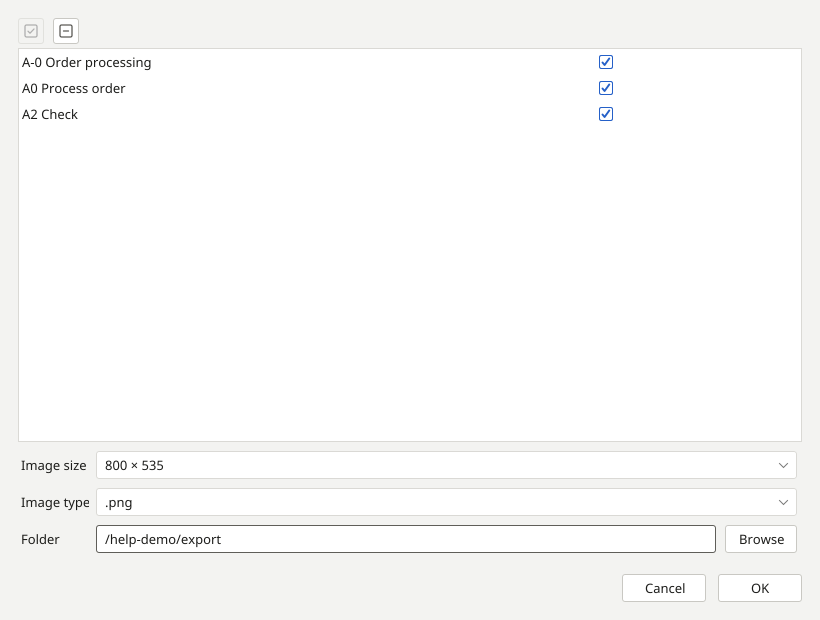
- Choose “Export to images”, check the diagrams and select an offered format and destination.
- Confirm the export and open the resulting files. An image conveys the diagram’s appearance; retain the .rsf file for further editing.
Print diagrams
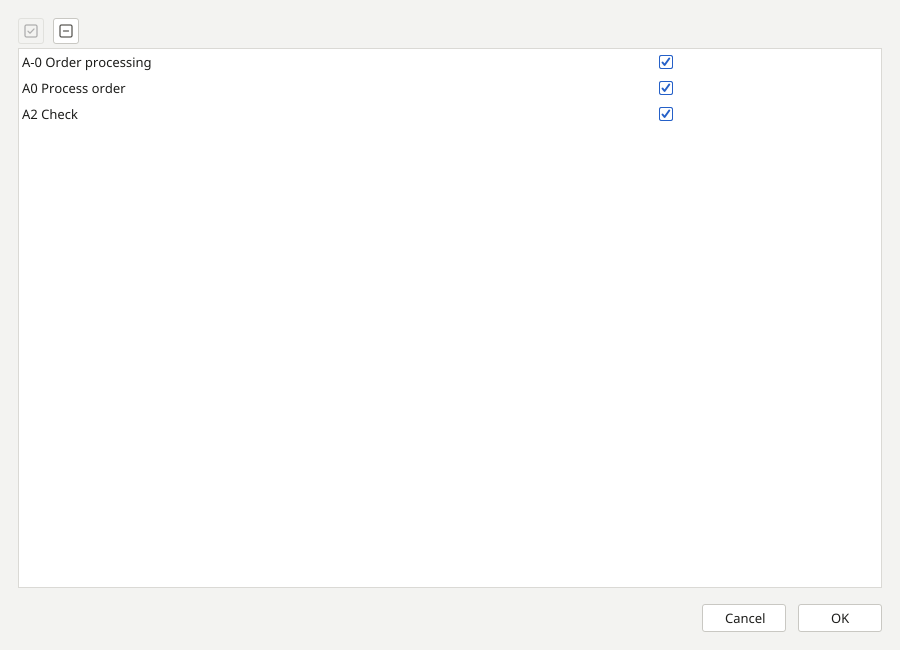
- Invoke printing and check the required diagrams in the tree. This Ramus dialog contains diagram selection and OK and Cancel buttons.
- Select OK. The system print dialog then opens: select your printer and settings and confirm printing. Cancel in the Ramus dialog closes the selection without opening the system dialog.
You have chosen a format for your purpose: an editable project, exchange data, or diagrams for viewing and printing.